Shortcuts and menus
Every keyboard shortcut of the Original chart, and what each of its menus holds
Keyboard shortcuts
Shortcuts work when the chart has focus: click the chart first. They follow TradingView's, so the keys you already know work the same.
Key rules
- Focus. Keys reach the chart only when the chart itself has focus. After you click a legend button, a menu or a dialog, the focus is there: click the chart again.
Ctrl+Sis the exception: it works wherever the focus is in the chart's own area, its top bar, drawing toolbar, bottom bar or plot. It doesn't work from the dialogs the app opens over the chart, such as Chart settings or Go to. - Mac. Use ⌘ for Ctrl and ⌥ for Alt. The Control key works too, except for
Ctrl+←/Ctrl+→, which take Control and not ⌘. Menu hints show ⌘, ⌥ and ⇧ on a Mac. - Keyboard layouts. The Alt shortcuts go by where the key is, so they work with any layout.
Ctrl+Z,Ctrl+Y,Ctrl+CandCtrl+Vgo by the letter the key types. - Trading screen keys. On a wide screen, the trading screen has keys of its own that work even while the chart has focus:
Ctrl+Shift+↑opens the picker for a new market tab (and also zooms the chart in), andCtrl+Shift+←/Ctrl+Shift+→switch market tabs. To zoom without opening the picker, useCtrl+↑.
Drawing
| Keys | Action |
|---|---|
Alt+T | Trend Line |
Alt+H | Horizontal line at the pointer |
Alt+J | Horizontal ray at the pointer |
Alt+V | Vertical line at the pointer |
Alt+C | Cross line at the pointer |
Alt+F | Fib Retracement |
Alt+Shift+R | Rectangle |
| Shift + drag | Measure |
| Shift while placing or dragging a point | Trend Line, Ray, Extended Line, Info Line, Trend Angle and Arrow stay level, upright or at 45°; Rectangle and Ellipse draw a square or a circle |
Enter | Finish a Path, Polyline or Ghost Feed |
Esc | Drop the drawing in progress, or a trade line you are dragging; else deselect; else back to Cursor |
Alt+H, Alt+J, Alt+V and Alt+C draw the line at once, selected, where the pointer is, and bring back drawings you hid with Hide drawings. With the pointer off the chart, they pick the tool instead: click to place the line.
Selection and editing
| Keys | Action |
|---|---|
| Ctrl + click a drawing | Add it to the selection, or take it out |
| Ctrl + drag a drawing | Clone it |
Ctrl+C | Copy the selected drawings |
Ctrl+V | Paste the drawings or the indicator you copied |
Delete / Backspace | Remove the selected drawings (locked ones stay), or act as a selected trade line's × (asks first) |
↑ / ↓, ← / → on a selected drawing | Move it by a pixel or a bar (ten with Shift) |
Ctrl+Alt+H | Hide or show all drawings |
Ctrl+Z | Undo. While you are placing or dragging a drawing, it drops that instead |
Ctrl+Shift+Z / Ctrl+Y | Redo |
Ctrl+S | Save the layout now |
View and scale
| Keys | Action |
|---|---|
Alt+R (or Alt+0) | Reset chart view |
Alt+L | Log scale on or off, not while Lock price to bar ratio is on |
Alt+P | Percent scale on or off, not while Lock price to bar ratio is on |
Alt+I | Invert scale on or off |
← / → | Scroll one bar, when no drawing is selected |
Alt+← / Alt+→ | Scroll a quarter of the screen (also Ctrl, but not ⌘) |
Ctrl+↑ / Ctrl+↓ | Zoom in / out |
Ctrl+Shift+↑ / Ctrl+Shift+↓ | Zoom in / out (see Trading screen keys above) |
+ or = / - | Zoom in / out |
| Mouse wheel, or Ctrl + wheel | Zoom in / out; over the price axis, scale the prices; sideways, scroll |
Dialogs and images
| Keys | Action |
|---|---|
/ | Indicators |
Alt+G | Go to a date |
1 to 9 | Change interval, starting with that digit |
, | Change interval, starting with the current one |
Ctrl+Alt+S | Download chart image |
Ctrl+Alt+↑ | Share chart image |
Ctrl+Shift+S | Copy chart image |
→, then Enter or Space, on a tool in a group's list | Star the tool, or remove its star |
Keys in lists, popups and boxes
- A group's list of tools, and the line width and line style lists of the style bar:
↑/↓move through the items,EnterorSpacepicks one. In a group's list,→goes to the tool's star and←back.Tabcloses a group's list. Esccloses the menu or popup you opened last.- Dialogs (Chart settings, an indicator's or a drawing's settings, Go to, Change interval):
Enterin a field does what the dialog's main button does,Esccancels. - Text you type on the chart, and the levels box of the style bar:
Enterkeeps it,Escdrops it. Clicking elsewhere keeps it. - A trade edit asking to confirm: Confirm has the focus, so
Enterconfirms andEsccancels.
Right-click menus
What you right-click decides the menu:
| You right-click | Menu |
|---|---|
| The price axis of the price chart | Price scale menu |
| A drawing | The drawing's menu |
| An indicator's row in the legend | The indicator's More menu |
| Anywhere else, including indicator panes, their axes and the time axis | The chart menu |
Right-clicking a drawing selects it. When it is one of several selected drawings, they all stay selected and the menu acts on all of them. There is no right-click menu on touch screens, or while you drag a trade line.
Grayed-out items can't be used yet. Hints on the right show the item's shortcut.
Chart menu
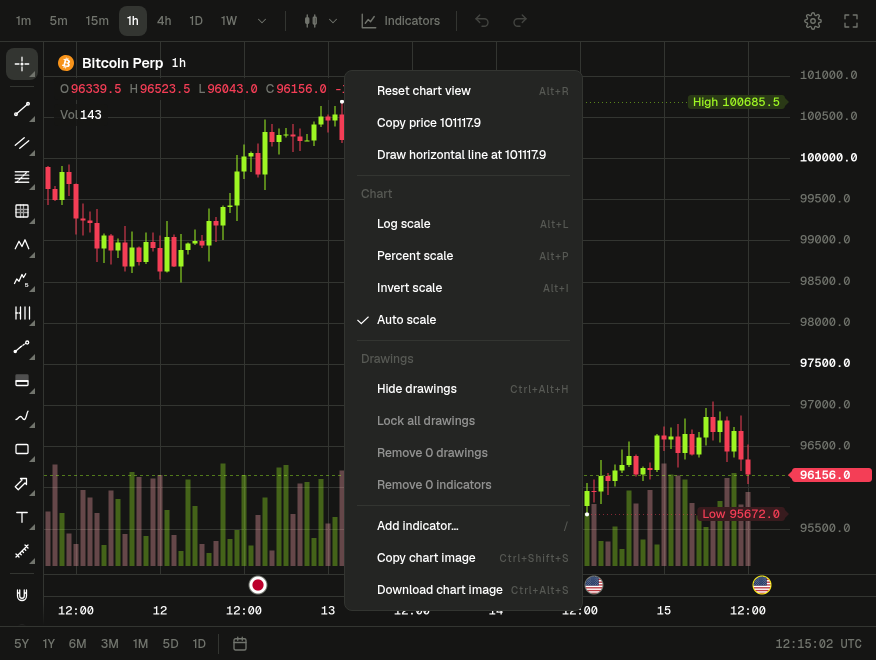
| Item | Hint | When |
|---|---|---|
| Reset chart view | Alt+R | Always |
| Paste | Ctrl+V | Once you have copied a drawing or an indicator |
| Copy price and the price | With the pointer over the price chart: copies the price under it | |
| Draw horizontal line at and the price | With the pointer over the price chart: draws a Horizontal Line there | |
| Chart | Header | |
| Log scale | Alt+L | Checkbox. Unticking it goes back to Regular. Grayed out while Lock price to bar ratio is on |
| Percent scale | Alt+P | Checkbox. Unticking it goes back to Regular. Grayed out while Lock price to bar ratio is on |
| Invert scale | Alt+I | Checkbox |
| Auto scale | Checkbox, for the price chart's axis | |
| Drawings | Header | |
| Hide drawings / Show drawings | Ctrl+Alt+H | Reads Show drawings while all drawings are hidden |
| Show N hidden drawings | Only when you have hidden some drawings one by one | |
| Lock all drawings | Checkbox, ticked when every drawing is locked: pick it again to unlock them all. Grayed out with no drawings | |
| Remove N drawings | Removes the unlocked drawings. Grayed out when there are none | |
| Remove N indicators | Grayed out with no indicators. One Undo brings them all back | |
| Add indicator… | / | Always |
| Copy chart image | Ctrl+Shift+S | Always. When the browser refuses the copy, a message says so |
| Download chart image | Ctrl+Alt+S | Always |
Price scale menu
Right-click the price axis of the price chart. What each setting does is under Price scale on the Chart page.
| Item | State |
|---|---|
| Auto (fits data to screen) | Checkbox. Grayed out while Lock price to bar ratio is on |
| Lock price to bar ratio | Checkbox. The current ratio shows on the right |
| Scale price chart only | Checkbox |
| Invert scale | Checkbox, Alt+I |
Regular, Percent (Alt+P), Indexed to 100, Logarithmic (Alt+L) | The current one is ticked. All grayed out while Lock price to bar ratio is on |
| Move scale to left / Move scale to right | Names the other side |
| Labels ▸ | Symbol last price label, High and low, Indicators value labels, Countdown to bar close, No overlapping labels: checkboxes |
| Lines ▸ | Price line: checkbox |
| More settings… | Opens Chart settings on Scales |
Indicator More menu
Click More on an indicator's legend row, or right-click the row. What each item does is on the Indicators page.
| Item | State |
|---|---|
| Settings… | Always |
| Visual order: Bring to front, Bring forward | Grayed out when the indicator is already in front |
| Visual order: Send to back, Send backward | Grayed out when it is already at the back |
| Move to: New pane above | Grayed out on the price chart, and when the indicator is alone in its pane |
| Move to: New pane below | Grayed out when the indicator is alone in an indicator pane |
| Move to: one item per pane (Price chart, or the pane's indicator names) | The indicator's own pane is ticked and grayed out |
| Pin to scale: Pinned to right scale, Pinned to left scale, No scale (fullscreen) | Only when the indicator shares its pane with another line that scales to fit. The current one is ticked |
| Clone, Copy | Always |
| Hide / Show | Reads Show while the indicator is hidden |
| Remove | Always |
The row's buttons, when you hover it (tap it on a phone), are Hide (or Show), Settings, More and Remove. Double-click the row for its settings.
Drawing menu
Right-click a drawing. What each item does is on the Drawing tools page.
| Item | Hint | State |
|---|---|---|
| Bring to front | The right-clicked drawing only. Grayed out when it is already in front | |
| Send to back | The right-clicked drawing only. Grayed out when it is already at the back | |
| Clone | Ctrl+Drag | Every selected drawing |
| Copy | Ctrl+C | Every selected drawing |
| Lock / Unlock | Reads Unlock when the right-clicked drawing is locked. Every selected drawing | |
| Hide | Every selected drawing | |
| Remove | Del | Every selected drawing but the locked ones. Grayed out when they are all locked |
| Settings… | The right-clicked drawing only |
Pane and toolbar buttons
| Where | Button | Shown |
|---|---|---|
| Top right of a pane | Move pane up | On indicator panes, but not on the first one under the price chart |
| Top right of a pane | Move pane down | On indicator panes, but not on the last one |
| Top right of a pane | Delete pane | On indicator panes |
| Top right of a pane | Collapse pane / Restore pane | On indicator panes |
| Top right of a pane | Maximize pane / Restore pane | On every pane, once there are two or more |
| Under the price chart's legend | Hide indicators legend / Show indicators legend | With at least one indicator row. Folded, it shows how many rows there are |
| Drawing toolbar | Lock all drawings / Unlock all drawings | Always |
| Drawing toolbar | Hide drawings / Show drawings | Always |
While a pane is maximized, the pane buttons other than Restore pane are hidden. The pane buttons are explained on the Indicators page, the drawing toolbar on the Drawing tools page.